
#快速开始
只需几分钟即可启动并运行 AIO Sandbox。
#先决条件
- 系统上已安装 Docker
- 至少 2GB 可用内存
#安装
#选项 1:使用 Docker 运行(推荐)
# 拉取并运行最新版本
docker run --security-opt seccomp=unconfined --rm -it \
-p 127.0.0.1:8080:8080 ghcr.io/agent-infra/sandbox:latest#选项 2:中国大陆用户
使用我们的中国镜像以获得更快的下载速度:
docker run --security-opt seccomp=unconfined --rm -it \
-p 127.0.0.1:8080:8080 enterprise-public-cn-beijing.cr.volces.com/vefaas-public/all-in-one-sandbox:latest#选项 3:使用指定版本
格式为 agent-infra/sandbox:${version}。例如使用 1.11.0:
docker run --security-opt seccomp=unconfined --rm -it \
  -p 127.0.0.1:8080:8080 ghcr.io/agent-infra/sandbox:1.11.0

# 或使用中国大陆镜像
docker run --security-opt seccomp=unconfined --rm -it \
  -p 127.0.0.1:8080:8080 enterprise-public-cn-beijing.cr.volces.com/vefaas-public/all-in-one-sandbox:1.11.0
这些示例会把宿主机端口绑定到 127.0.0.1,因此沙盒默认只允许本机访问。如果部署到云主机或 Kubernetes,请保持 8080 为私有端口,并通过反向代理或 Ingress 对外发布;详见云上部署。
如果端口 8080 被占用,映射到不同的端口:
docker run --security-opt seccomp=unconfined --rm -it \
  -p 127.0.0.1:3000:8080 ghcr.io/agent-infra/sandbox:latest
# 然后通过 http://localhost:3000 访问#欢迎
运行 Docker 命令后,您将看到 AIO Sandbox ASCII 标志:
 █████╗ ██╗ ██████╗     ███████╗ █████╗ ███╗   ██╗██████╗ ██████╗  ██████╗ ██╗  ██╗
██╔══██╗██║██╔═══██╗    ██╔════╝██╔══██╗████╗  ██║██╔══██╗██╔══██╗██╔═══██╗╚██╗██╔╝
███████║██║██║   ██║    ███████╗███████║██╔██╗ ██║██║  ██║██████╔╝██║   ██║ ╚███╔╝
██╔══██║██║██║   ██║    ╚════██║██╔══██║██║╚██╗██║██║  ██║██╔══██╗██║   ██║ ██╔██╗
██║  ██║██║╚██████╔╝    ███████║██║  ██║██║ ╚████║██████╔╝██████╔╝╚██████╔╝██╔╝ ██╗
╚═╝  ╚═╝╚═╝ ╚═════╝     ╚══════╝╚═╝  ╚═╝╚═╝  ╚═══╝╚═════╝ ╚═════╝  ╚═════╝ ╚═╝  ╚═╝

🚀 AIO(All-in-One) 代理沙盒环境
📦 镜像版本:1.0.0.93
🌈 仪表板:http://localhost:8080/index.html
🔌 MCP:http://localhost:8080/mcp
📚 文档:http://localhost:8080/v1/docs#1. 安装 SDK
Python
TypeScript
pip install agent-sandboxnpm install @agent-infra/sandbox#2. 配置客户端
Python
from agent_sandbox import Sandbox

client = Sandbox(base_url="http://localhost:8080")#3. 与沙盒交互
通过 file、shell、browser、code execute 与沙盒交互。
#执行 Shell
Python
Curl
shell_res = client.shell.exec_command(command="ls -la")
print(shell_res.data.output) # /home/gem
curl -X 'POST' \
'http://127.0.0.1:8080/v1/shell/exec' \
-H 'accept: application/json' \
-H 'Content-Type: application/json' \
-d '{
"command": "ls -la"
}'#文件
Python
Curl
file_res = client.file.read_file(file="/home/gem/.bashrc")
print(file_res.data.content) # export TERM=xterm-256color
curl -X 'POST' \
'http://127.0.0.1:8080/v1/file/read' \
-H 'accept: application/json' \
-H 'Content-Type: application/json' \
-d '{
"file": "/home/gem/.bashrc"
}'#浏览器
#截图
Python
Curl
screenshot = client.browser.screenshot()
print(screenshot)
curl -X 'GET' \
'http://127.0.0.1:8080/v1/browser/screenshot' \
-H 'accept: image/png'#GUI 操作
Python
Curl
action_res = client.browser.execute_action_actions_post(
    request=Action_MoveTo(x=100, y=100)
)
print(action_res)
curl -X 'POST' \
'http://127.0.0.1:8080/v1/browser/actions' \
-H 'accept: application/json' \
-H 'Content-Type: application/json' \
-d '{
"action_type": "MOVE_TO",
"x": 100,
"y": 100
}'更多
action_type详情可以在浏览器中找到。
#使用 CDP 连接到浏览器
Python
Curl
from playwright.sync_api import sync_playwright

browser_info = client.browser.get_info()
cdp_url = browser_info.data.cdp_url
playwright = sync_playwright().start()
browser = playwright.chromium.connect_over_cdp(cdp_url)
curl -X 'GET' \
'http://127.0.0.1:8080/v1/browser/info' \
-H 'accept: application/json'#示例
将网页转换为带有嵌入 base64 截图的 Markdown:
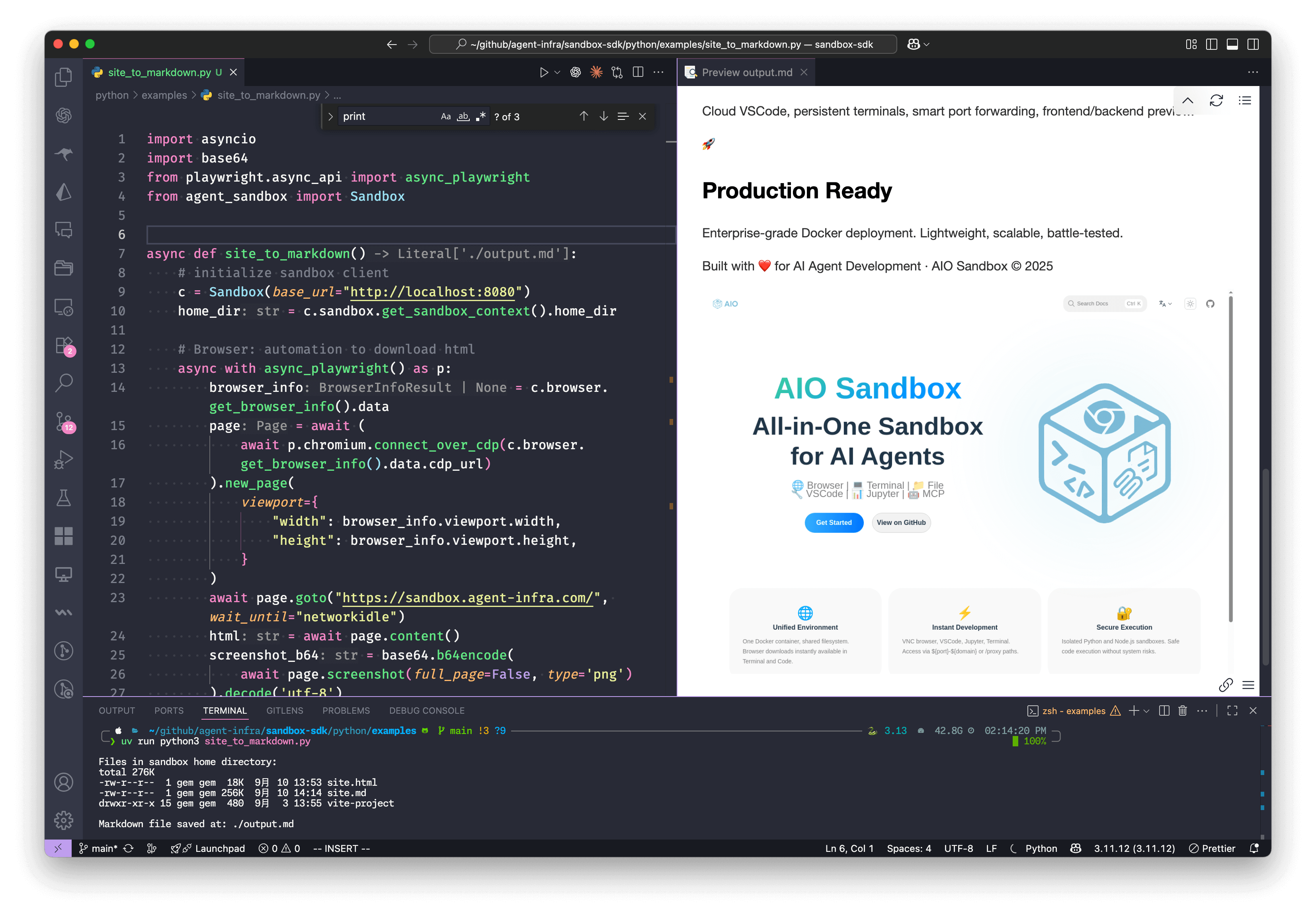
Python
import asyncio
import base64
from playwright.async_api import async_playwright
from agent_sandbox import Sandbox
async def site_to_markdown():
# 初始化沙盒客户端
c = Sandbox(base_url="http://localhost:8080")
home_dir = c.sandbox.get_context().home_dir
# 浏览器:自动化下载 html
async with async_playwright() as p:
browser_info = c.browser.get_info().data
page = await (await p.chromium.connect_over_cdp(browser_info.cdp_url)).new_page(
viewport={
"width": browser_info.viewport.width,
"height": browser_info.viewport.height,
}
)
await page.goto("https://sandbox.agent-infra.com/", wait_until="networkidle")
html = await page.content()
screenshot_b64 = base64.b64encode(
await page.screenshot(full_page=False, type='png')
).decode('utf-8')
# Jupyter:在沙盒中运行代码将 html 转换为 markdown
c.jupyter.execute_code(
code=f"""
from markdownify import markdownify
html = '''{html}'''
screenshot_b64 = "{screenshot_b64}"
md = f"{{markdownify(html)}}\\n\\n"
with open('{home_dir}/site.md', 'w') as f:
f.write(md)
print("完成!")
"""
)
# Bash:执行命令列出沙盒中的文件
list_result = c.shell.exec_command(command=f"ls -lh {home_dir}")
print(f"\n沙盒主目录中的文件:\n{list_result.data.output}")
open("./output.md", "w").write(
c.file.read_file(file=f"{home_dir}/site.md").data.content
)
return "./output.md"
if __name__ == "__main__":
# 运行异步函数
result = asyncio.run(site_to_markdown())
print(f"\nMarkdown 文件保存在:{result}")#访问点
运行后,您可以访问不同的界面:
| 服务 | URL | 描述 |
|---|---|---|
| API 文档 | http://localhost:8080/v1/docs | OpenAPI 文档 |
| 仪表板 | http://localhost:8080/index.html | 仪表板 |
| VNC 浏览器 | http://localhost:8080/vnc/index.html?autoconnect=true | 带浏览器的远程桌面 |
| 终端 | http://localhost:8080/terminal | 终端交互 |
| Code Server | http://localhost:8080/code-server/ | VSCode Server |
| MCP 服务器 | http://localhost:8080/mcp | 模型上下文协议服务器 |
| Jupyter | http://localhost:8080/jupyter | VSCode Server |