Browser & VNC
AIO Sandbox provides a full browser environment with VNC (Virtual Network Computing) access, enabling visual interaction with web applications and GUI-based workflows.
Overview
AIO Sandbox offers multiple ways to interact with the browser:
- CDP (Chrome DevTools Protocol): Low-level programmatic control
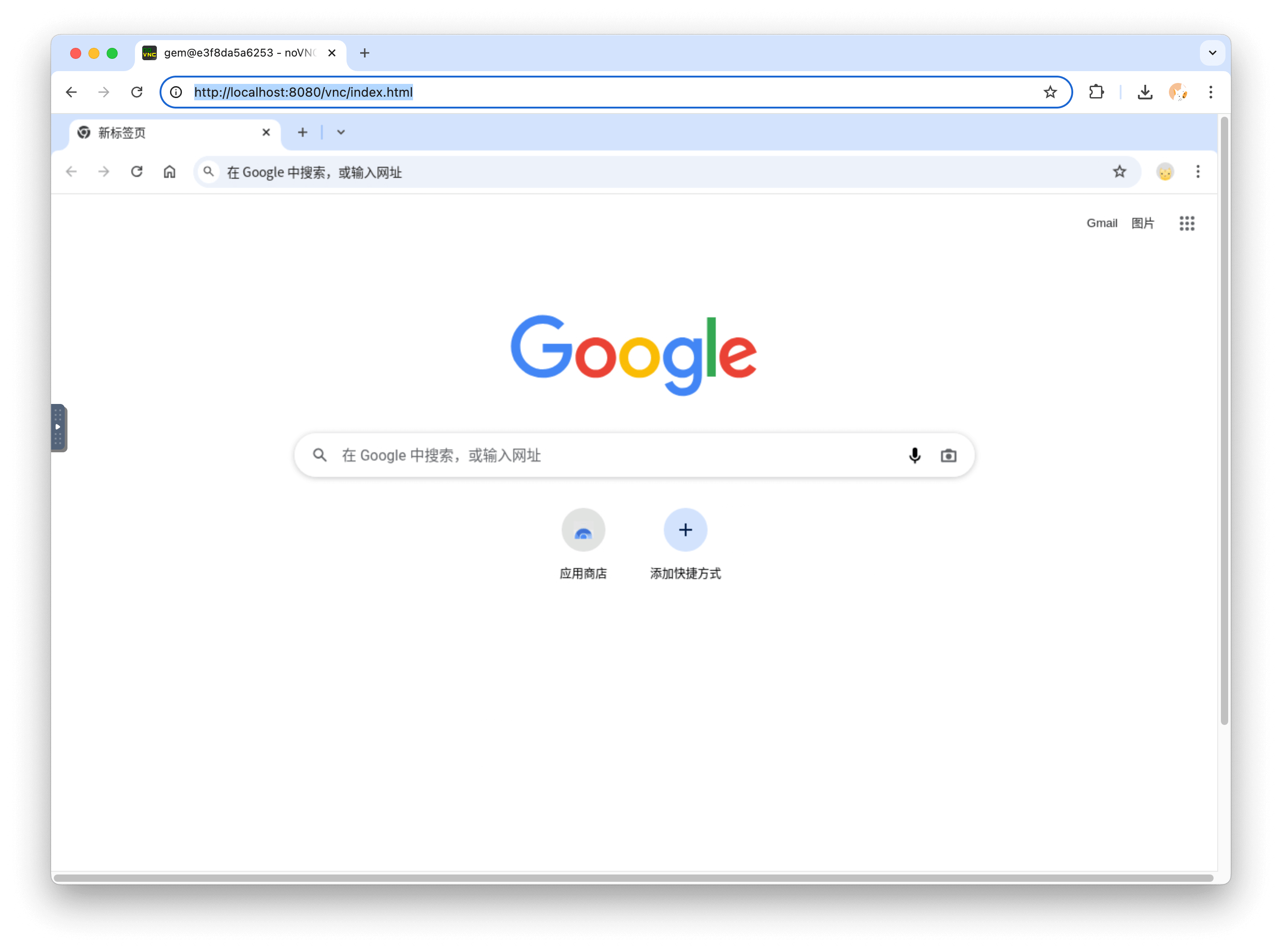
- VNC Access: Full desktop environment with visual access
- GUI Actions: Visual screenshots and interactions
- Browser Automation: Integration with Playwright and Puppeteer
Connection
Chrome DevTools Protocol (CDP) is a low‑level, language‑agnostic protocol that allows external programs to instrument, inspect, and control Chrome or Chromium‑based browsers.
curl -X 'GET' \
  'http://127.0.0.1:8080/v1/browser/info' \
  -H 'accept: application/json' \
  | jq '.data.cdp_url'
curl http://localhost:8080/json/version | jq '.webSocketDebuggerUrl'
Browser Automation
AIO Sandbox exposes CDP for programmatic browser control:
# Get CDP endpoint
curl http://localhost:8080/cdp/json/version
# Or Get Browser Info (response data.cdp_url)
curl http://localhost:8080/v1/browser/info
Response includes webSocketDebuggerUrl for connecting automation tools.
Python SDK Integration
The Python SDK provides both synchronous and asynchronous clients for browser control:
from agent_sandbox import Sandbox
from agent_sandbox.browser import Action_Click, Action_MoveTo, Action_Typing

# Initialize client
client = Sandbox(base_url="http://localhost:8080")

# Get browser information
browser_info = client.browser.get_info()
print(f"CDP URL: {browser_info.cdp_url}")
print(f"Viewport: {browser_info.viewport}")

# Take screenshot
screenshot_data = client.browser.take_screenshot()
with open("screenshot.png", "wb") as f:
    for chunk in screenshot_data:
        f.write(chunk)

# Execute GUI actions
# Move mouse to position
client.browser.execute_action(
    request=Action_MoveTo(x=500, y=300)
)

# Click at current position
client.browser.execute_action(
    request=Action_Click()
)

# Type text
client.browser.execute_action(
    request=Action_Typing(text="Hello World")
)
import asyncio
from agent_sandbox import AsyncSandbox
from agent_sandbox.browser import Action_Click, Action_MoveTo, Action_Typing

async def main():
    # Initialize async client
    client = AsyncSandbox(base_url="http://localhost:8080")

    # Get browser information
    browser_info = await client.browser.get_info()
    print(f"CDP URL: {browser_info.cdp_url}")

    # Take screenshot
    screenshot_data = client.browser.take_screenshot()
    with open("screenshot.png", "wb") as f:
        async for chunk in screenshot_data:
            f.write(chunk)

    # Execute GUI actions
    await client.browser.execute_action(
        request=Action_MoveTo(x=500, y=300)
    )

    await client.browser.execute_action(
        request=Action_Click()
    )

asyncio.run(main())
Browser Use Integration
Example with the browser_use Python library:
import requests
from agent_sandbox import Sandbox
from browser_use.browser.browser import BrowserSession, BrowserProfile

# Get CDP URL
client = Sandbox(base_url="http://localhost:8080")
cdp_url = client.browser.get_info().cdp_url

# Configure browser profile
profile = {
    "user_agent": "Mozilla/5.0 (Macintosh; Intel Mac OS X 10_15_7) AppleWebKit/537.36",
    "ignore_https_errors": True,
    "viewport": {"width": 1920, "height": 1080},
}

# Create session
browser_session = BrowserSession(
    browser_profile=BrowserProfile(**profile),
    cdp_url=cdp_url
)

await browser_session.start()
page = await browser_session.browser_context.new_page()
await page.goto("https://example.com")
Playwright Integration
Works with Playwright for cross-browser testing:
from playwright.async_api import async_playwright
from agent_sandbox import Sandbox

client = Sandbox(base_url="http://localhost:8080")

async with async_playwright() as p:
    browser_info = client.browser.get_info()
    cdp_url = browser_info.cdp_url

    browser = await p.chromium.connect_over_cdp(cdp_url)
    page = await browser.new_page()
    await page.goto("https://example.com")
    await page.screenshot(path="screenshot.png")

    # Perform browser automation
    await page.fill('input[name="search"]', 'test query')
    await page.click('button[type="submit"]')
    await page.wait_for_load_state('networkidle')
MCP
Once connected to /mcp endpoint, all tools with the browser_ prefix are browser-related tools that provide comprehensive browser control capabilities. These tools include navigation, interaction, screenshot capture, and more.
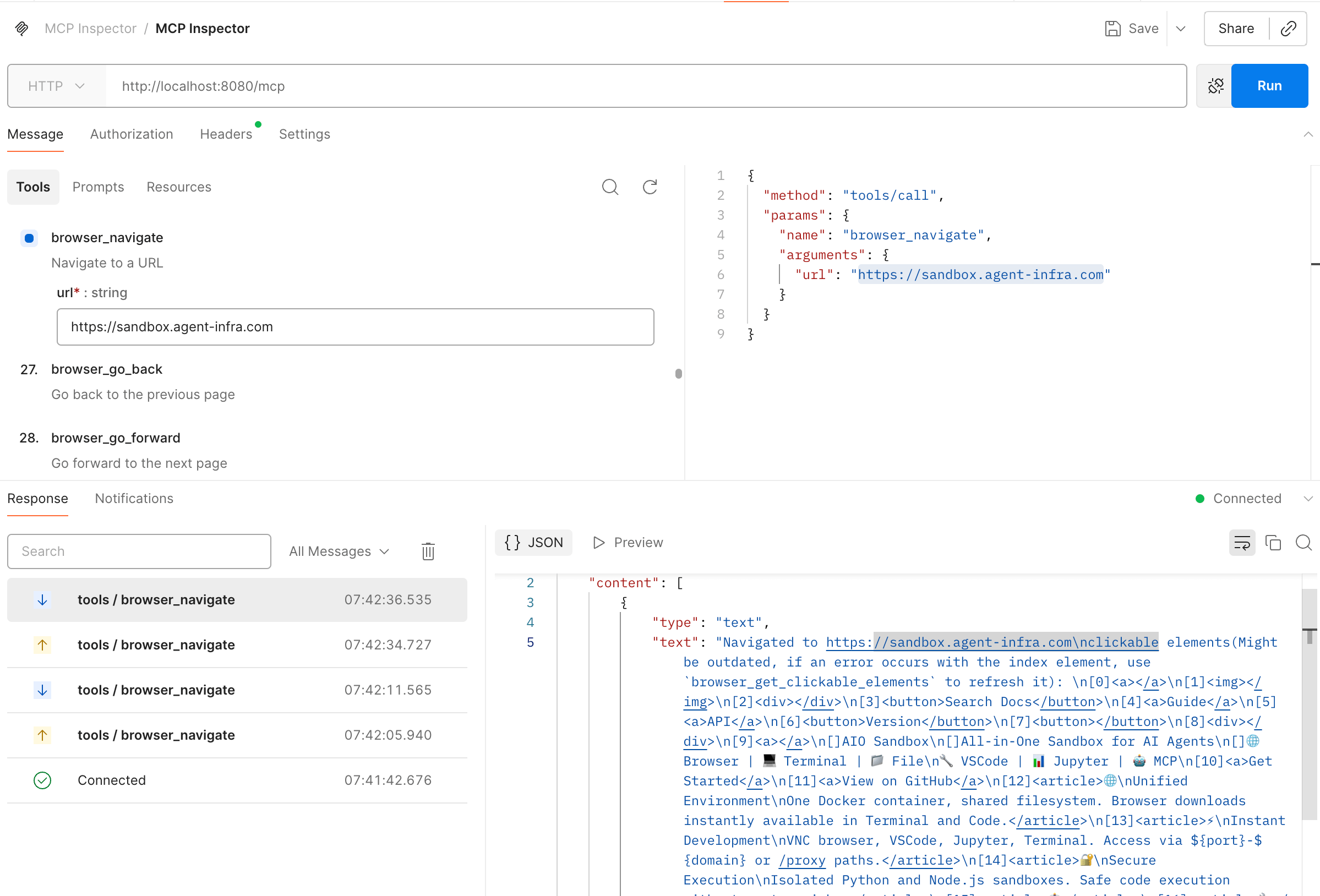
For detailed implementation and usage, see @agent-infra/mcp-server-browser.
GUI Actions
GUI actions provide visual screenshot-based interactions with the browser. Unlike browser automation, GUI operations use pure visual screenshots and interactions, which can be advantageous in strict risk-control scenarios where DOM manipulation is restricted.
Screenshot
screenshot = client.browser.screenshot()
print(screenshot)
curl -X 'GET' \
  'http://127.0.0.1:8080/v1/browser/screenshot' \
  -H 'accept: image/png'
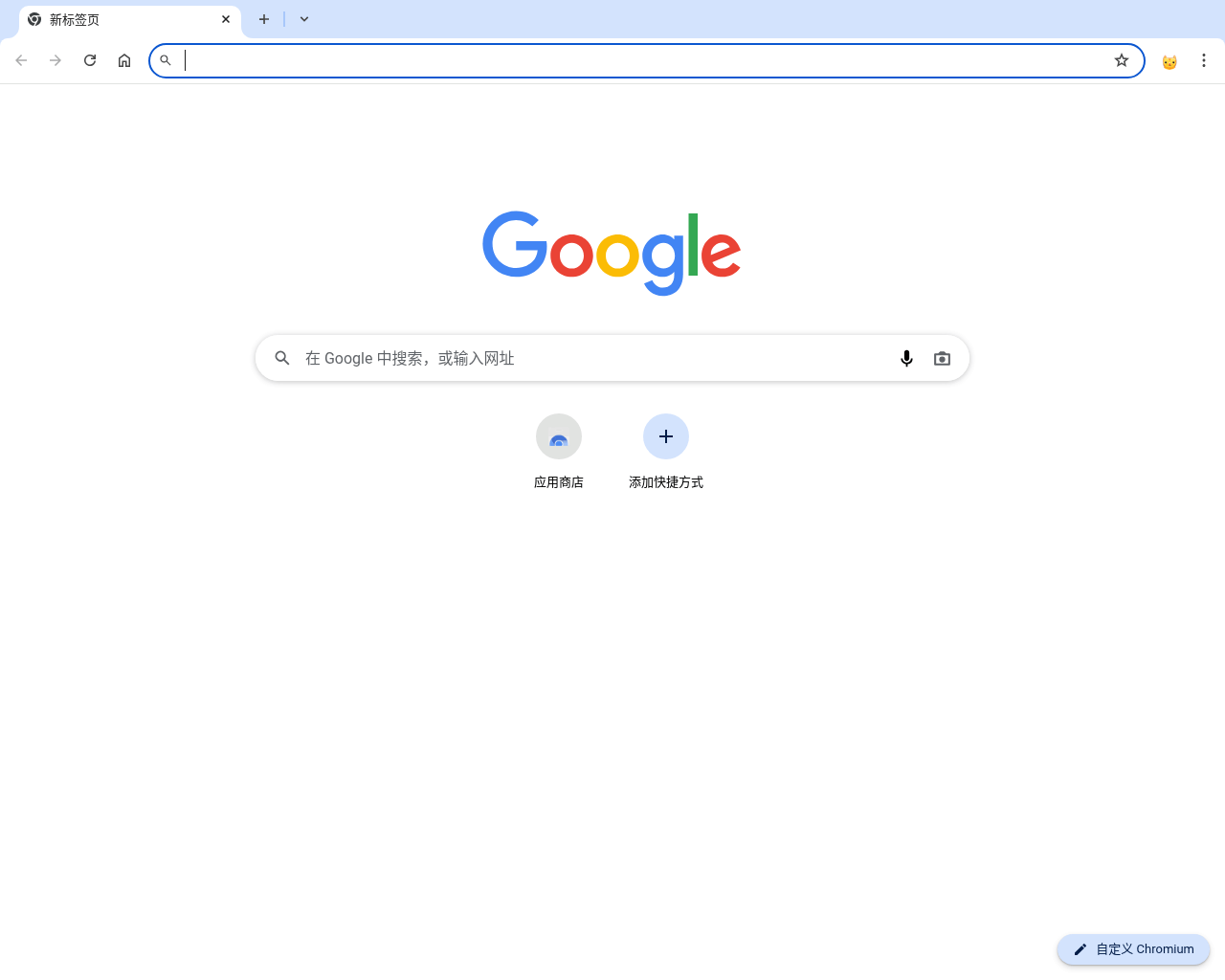
Return an image in the format image/png:
GUI Actions
from agent_sandbox.browser import (
    Action_MoveTo, Action_Click, Action_Typing,
    Action_Scroll, Action_Hotkey, Action_DragTo
)

# Move mouse to coordinates
action_res = client.browser.execute_action(
    request=Action_MoveTo(x=100, y=100)
)

# Click with options
action_res = client.browser.execute_action(
    request=Action_Click(x=200, y=200, num_clicks=2)
)

# Type text with clipboard option
action_res = client.browser.execute_action(
    request=Action_Typing(text="Hello World", use_clipboard=True)
)

# Scroll the page
action_res = client.browser.execute_action(
    request=Action_Scroll(dx=0, dy=100)
)

# Execute hotkey combination
action_res = client.browser.execute_action(
    request=Action_Hotkey(keys=["ctrl", "c"])
)
curl -X 'POST' \
  'http://127.0.0.1:8080/v1/browser/actions' \
  -H 'accept: application/json' \
  -H 'Content-Type: application/json' \
  -d '{
  "action_type": "MOVE_TO",
  "x": 100,
  "y": 100
}'
Available Action Types
Example hotkey: ["ctrl", "c"] for copy, ["ctrl", "v"] for paste
Take Over
If you want to achieve Human-in-the-loop for browser use, there are two ways:
1. VNC Access
Access the VNC interface at or embed it directly into the application using an iframe:
http://localhost:8080/vnc/index.html?autoconnect=true
The VNC server provides:
- Full desktop environment
- Pre-installed Chrome browser
- Mouse and keyboard interaction
- Screen sharing capabilities
See EMBEDDING.md for more custom parameters.
2. CDP Access
You can use the @agent-infra/browser-ui React component library to connect to a CDP address for takeover. Below is a code example:
import React, { useRef } from 'react';
import { BrowserCanvas, BrowserCanvasRef, Browser, Page } from '@agent-infra/browser-ui';

function App() {
  const canvasRef = useRef<BrowserCanvasRef>(null);

  const handleReady = ({ browser, page }: { browser: Browser; page: Page }) => {
    console.log('Browser connected, current URL:', page.url());

    // Listen for navigation events
    page.on('framenavigated', (frame) => {
      if (frame === page.mainFrame()) {
        console.log('Navigated to:', frame.url());
      }
    });
  };

  const handleError = (error: Error) => {
    console.error('Browser connection error:', error);
  };

  return (
    <div style={{ width: '100%', height: '800px', position: 'relative' }}>
      <BrowserCanvas
        ref={canvasRef}
        cdpEndpoint="http://localhost:8080/json/version"
        onReady={handleReady}
        onError={handleError}
        onSessionEnd={() => console.log('Session ended')}
      />
    </div>
  );
}
VNC vs Canvas Comparison
Q&A
- Abstraction Level: MCP provides high-level, ready-to-use abstractions, while CDP offers low-level, flexible control
- Connection Stability: MCP connections are more stable as the container's MCP Server wraps CDP protocol and exposes HTTP interfaces
- Flexibility: CDP is more flexible - once connected, you get
browser and page instances for fine-grained control